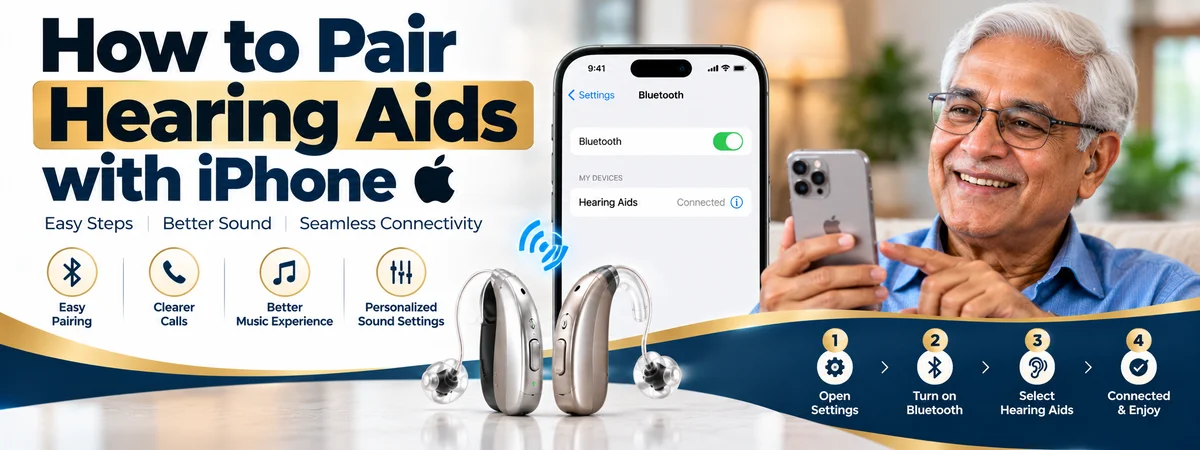
How to Pair Hearing Aids with iPhone: Easy Step-by-Step Guide
How to Pair Hearing Aids with iPhone: Easy Step-by-Step Guide
Modern hearing aids do far more than make sounds louder. Many of them connect directly to your smartphone, so phone calls, music, videos, and voice notes stream straight into your ears. If you own an iPhone, this connection is simple once you know the steps.
This guide explains how to pair hearing aids with iPhone, how to control them from your phone, and what to do when something goes wrong. If you live in Chhatrapati Sambhajinagar and want hands-on help, you will also find where to get professional support.
Why Pair Hearing Aids with an iPhone?
Pairing your hearing aids with an iPhone makes everyday listening easier and more personal. Here is what you gain:
Phone calls stream directly into both hearing aids, so you hear the caller clearly without holding the phone to your ear.
Music, podcasts, videos, and audiobooks play with clean, balanced sound.
You can adjust volume, change programs, and switch listening modes from your phone instead of tiny buttons on the device.
You can use Live Listen, which turns your iPhone into a remote microphone.
Notifications, navigation prompts, and FaceTime or WhatsApp calls are easier to follow.
For people with hearing loss, this can mean less strain, better conversations, and more confidence in noisy places.
Check Compatibility First
Before you start, confirm that your hearing aids support direct iPhone connection. Apple uses the term “Made for iPhone” (often written MFi) for hearing aids designed to connect directly using Bluetooth Low Energy technology. Newer hearing aids may also use updated Bluetooth standards that work with recent iPhones.
Check these three things:
Your hearing aid model. Look at the brand’s packaging, user guide, or product details to see whether it says “Made for iPhone” or lists iPhone compatibility. If you are unsure, an audiologist can confirm it in a minute.
Your iPhone model. Most iPhones from the last several years work well. Keep your phone updated for the best connection.
Your iOS version. Go to Settings, tap General, then Software Update, and install any pending update. Updates often improve Bluetooth stability.
What You Need Before Pairing
Get these ready so the process goes smoothly:
Fully charged or fresh-battery hearing aids
Your iPhone with Bluetooth turned on
A quiet place where you can focus for a few minutes
Both hearing aids, since the iPhone pairs with them as a set
If you use a Wi-Fi network, it is helpful to stay connected, because some hearing aid apps need to download supporting data.
How to Pair Hearing Aids with iPhone: Step-by-Step
Follow these steps carefully. The process is almost identical for most Made for iPhone hearing aids.
Step 1: Turn On Bluetooth
Open Settings on your iPhone, tap Bluetooth, and make sure the switch is on. It should turn green.
Step 2: Put Your Hearing Aids in Pairing Mode
This step depends on the type of hearing aid you have.
Battery-operated hearing aids: Open the battery door, wait a few seconds, then close it. Your hearing aids are now ready to pair.
Rechargeable hearing aids: Place them in the charging case, then take them out. This restarts them and starts the pairing window.
The pairing window usually stays open for a few minutes, so continue to the next steps right away.
Step 3: Open Accessibility Settings
On your iPhone, go to Settings, tap Accessibility, scroll down to the hearing section, and tap Hearing Devices.
Step 4: Select Your Hearing Aids
Wait a moment. Your hearing aids should appear under the heading for available devices. Tap the name of your hearing aids when it shows up.
Step 5: Accept the Pairing Requests
A pop-up asks whether you want to pair. Tap Pair. If you have two hearing aids, you will usually see two pairing requests, one for the left and one for the right. Accept both.
Step 6: Confirm the Connection
Once pairing finishes, your hearing aids will appear as connected under Hearing Devices. You may hear a short tone or chime in your ears. That is your confirmation.
You are done. Your hearing aids are now paired with your iPhone and will reconnect automatically each time you turn them on.
How to Control Hearing Aids from Your iPhone
After pairing, you can control many settings without touching your hearing aids.
Use Control Center
Swipe to open Control Center and tap the ear icon. From there you can adjust volume, switch between listening programs, and use Live Listen.
Add the Hearing Shortcut
Go to Settings, then Control Center, and add the Hearing option if it is not already there. You can also set the Accessibility Shortcut to triple-click the side or Home button for fast access.
Use Live Listen
Live Listen uses your iPhone’s microphone to send sound directly to your hearing aids. Place your phone near the person speaking, at a restaurant table or on a desk in a meeting, and you will hear them more clearly in noisy surroundings.
Choose Audio Routing
In the Hearing Devices menu, you can decide where call and media audio plays, such as your hearing aids, your iPhone speaker, or both. Setting it to automatic works well for most people.
Use the Manufacturer’s App
Many hearing aid brands offer their own app for finer adjustments, such as bass and treble, noise control, and finding a lost hearing aid. Ask your audiologist which app suits your model.
Troubleshooting: Hearing Aids Not Pairing with iPhone
If pairing fails, do not worry. Most problems have simple fixes.
Restart Everything
Turn Bluetooth off and on, restart your iPhone, and restart your hearing aids by opening and closing the battery door or placing them in the charger again.
Check the Battery
Weak batteries cause connection drops. Replace disposable batteries or fully charge rechargeable ones.
Forget and Re-pair
Go to Settings, then Accessibility, then Hearing Devices, tap your hearing aids, and choose to forget the device. Restart both devices and pair again from Step 1.
Keep Devices Close
Keep your hearing aids within a short distance of your iPhone while pairing. Move away from other Bluetooth devices, microwaves, or crowded Wi-Fi areas that may cause interference.
Update Your iPhone
An outdated iOS version can block pairing. Install the latest update and try again.
Look for Multiple Connections
If your hearing aids were previously paired with another phone, tablet, or device, turn Bluetooth off on that device first. Hearing aids generally prefer one active main connection.
Seek Professional Help
If nothing works, the issue may involve firmware, hardware, or settings that need a professional. An audiologist can reset, update, and reprogram your devices quickly.
Tips for Better Hearing Aid and iPhone Performance
Keep your iPhone and hearing aids updated.
Clean your hearing aids daily with a dry, soft cloth.
Store them in a dry place, away from moisture and heat.
Do not keep your phone too far from your body. A pocket or hand is best for a strong signal.
Turn on Bluetooth permanently, since hearing aids rely on it.
Visit your audiologist regularly for fine-tuning and checkups.
What About Android Phones?
Many newer hearing aids also support certain Android phones, though the process and features can differ. If you switch phones in the future, check compatibility with your audiologist first, so you do not face surprises.
Why Professional Fitting Still Matters
A smartphone connection is a wonderful feature, but it works best when your hearing aids are properly fitted and programmed for your hearing loss. A hearing test, correct fitting, and follow-up adjustments make a big difference in sound quality, comfort, and speech clarity. Good pairing and good programming together give you the best results.
Need Help Pairing Your Hearing Aids? Visit VR Speech and Hearing Clinic
If you find the setup confusing or your hearing aids still will not connect, expert help is close by. The team at VR Speech and Hearing Clinic can guide you through hearing aid pairing, app setup, and everyday use so you feel comfortable from day one.
VR Speech and Hearing Clinic
Second Floor, Vasantrao Naik Chowk,
Opposite Hotel Deepali Executive, N-3, CIDCO,
Chhatrapati Sambhajinagar, Maharashtra 431003
Visit the clinic for a hearing check, hearing aid fitting, and personal support with connecting your devices to your iPhone.